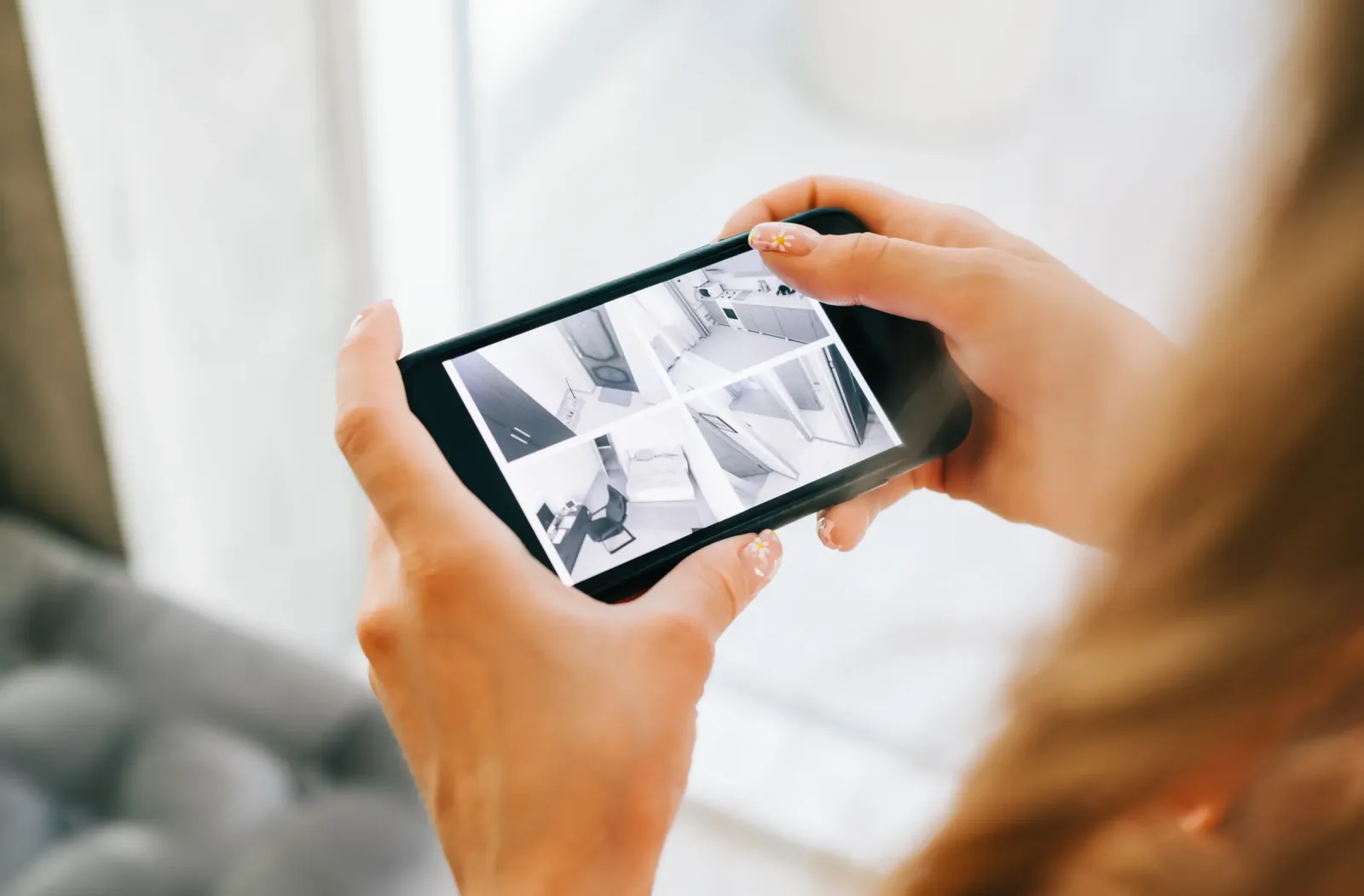
To view your CCTV cameras on your phone, connect the recorder (DVR or NVR) to the internet, install the manufacturer's app, add the recorder using its P2P or cloud ID (usually by scanning a QR code), then log in with the recorder's password. Once set up, you can watch live footage and play back recordings from anywhere with mobile data or Wi-Fi.
The steps below explain how phone viewing works, what you need at the site, how to keep it secure and what to check when remote view stops working.
What you need to view CCTV on your phone
- A recorder that supports remote viewing: most modern DVRs and NVRs do. Very old or unbranded units may not.
- Internet at the site: a router with fibre, a home Wi-Fi package or a mobile data router with a bundle.
- A network cable or Wi-Fi link: from the recorder to the router.
- The manufacturer's app: for example, Hikvision and Dahua both have their own mobile apps.
- The recorder's login details: username and a strong password, set during installation.
- A smartphone: Android or iPhone with mobile data or Wi-Fi.
How to view CCTV on your phone: step by step
Exact menus differ by brand and model, but the process is broadly the same.
1. Connect the recorder to the internet
Plug a network cable from the back of the DVR or NVR into your router. Wired connections are more reliable than Wi-Fi for recorders. On the recorder's menu, check the network settings and confirm it shows as connected.
2. Enable the P2P or cloud service
Most brands have a P2P (peer-to-peer) or cloud service that links your recorder to the app without complex router settings. In the recorder's network menu, enable it and check that the status shows "online". You will see a device serial number or cloud ID and usually a QR code.
3. Install the manufacturer's app
Download the official app for your recorder's brand from the Google Play Store or Apple App Store. Avoid unofficial apps, which may be insecure or stop working.
4. Add the device
In the app, choose to add a device, then scan the QR code on the recorder screen or sticker, or type in the serial number. Enter the recorder's username and password when asked.
5. Test live view and playback
Open each camera to check live view, then try playing back recordings from earlier in the day. If playback works, your setup is complete.
6. Set up alerts if you want them
Many systems can send push notifications when motion or a person is detected. Set detection zones carefully so you are not flooded with alerts from trees, cars on the road or pets.
How much data does CCTV viewing use?
Viewing cameras uses data both at the site (upload) and on your phone (download). The amount depends on resolution, how many cameras you open at once and how long you watch.
- Use the app's lower quality (sub-stream or "fluent") mode on mobile data, which uses much less.
- Switch to high quality (main stream) only when you need to zoom in on detail.
- Close the app when you are done so streams do not keep running.
- If the site uses a mobile data router, choose a bundle that covers your viewing habits, since uploads come from that bundle.
Note that recording does not use internet data. Cameras record to the hard disk in the recorder; data is only used when you view remotely.
Keep your CCTV secure
A camera system connected to the internet must be protected, or strangers could gain access to your footage.
- Change default passwords: never leave "admin" or "12345". Use a long, unique password.
- Update firmware: manufacturers release updates to fix security issues. Ask your installer to update the recorder and cameras.
- Use the official app only: avoid third-party apps that ask for your login details.
- Share access carefully: use the app's sharing feature to give family or staff their own access, rather than sharing the main password.
- Avoid opening router ports unless needed: P2P/cloud access is simpler and usually safer for homes than manual port forwarding.
- Secure your router: change its default password too.
Common reasons remote view stops working
If your cameras were visible on your phone and suddenly stopped, check these first.
- No internet at the site: the bundle has expired, the fibre is down or the router is off. This is the most common cause.
- Power outage: the recorder or router went off during a blackout and has not come back on. A UPS for both helps.
- Router replaced or reset: a new router may give the recorder a different network setting or not connect it at all.
- Password changed: the app still has the old password saved.
- P2P service disabled: after a reset or update, the cloud setting may need to be re-enabled.
- Loose network cable: the cable between the recorder and router has been knocked out.
- App or firmware out of date: older versions sometimes stop connecting after the manufacturer updates its service.
- Slow phone connection: weak signal may load the app but not the video; try a lower quality stream.
If the live view works but playback shows nothing, the problem is recording, not remote access. Check that the hard disk is detected and the recording schedule is on.
Quick troubleshooting checklist
- Confirm the router has internet by browsing from a phone on the same Wi-Fi.
- Restart the router and then the recorder.
- Check the recorder's network status and P2P/cloud status show online.
- Remove and re-add the device in the app if the password has changed.
- Update the app on your phone.
- If none of this works, call your installer.
Key takeaways
- You need internet at the site, the manufacturer's app and the recorder's P2P/cloud ID.
- Recording works without internet; internet is only needed for remote viewing.
- Use lower stream quality on mobile data to save bundles.
- Change default passwords and keep firmware updated.
- Expired bundles, blackouts and router changes are the usual reasons remote view stops.
Getting reliable phone viewing for your system
If you cannot see your cameras on your phone, or you are planning a new system and want remote viewing set up properly from day one, a technician can check the recorder, network and app together. Nerpax Systems supplies, installs and commissions CCTV systems with phone viewing across Nairobi, Kiambu, Kajiado, Machakos, Murang'a, Nyeri and Nakuru.
Visit our CCTV systems page, read IP vs Analog CCTV or check how much CCTV installation costs in Kenya. When you are ready, request a free quote or book a site visit.